
I am so sick of seeing “tech gurus” recommend expensive, proprietary cloud subscriptions just to move a few gigabytes of data. Honestly, if you’re paying twenty bucks a month just to bridge the gap between your phone and your laptop, you’re being scammed. I spent half my childhood scavenging parts to fix old hardware because we couldn’t afford new stuff, so I have zero patience for unnecessary gatekeeping. Learning how to transfer files between devices shouldn’t require a monthly budget or a PhD in computer science; it should just work, and it should be free.
I’m not going to give you a list of every shiny new app on the App Store that’s just going to clutter up your drive. Instead, I’m stripping this down to the actual workflows I use in my daily life as a sysadmin—the ones that are fast, secure, and don’t cost a dime. We’re going to look at the methods that actually save you time, whether you’re moving a massive video file or just a quick screenshot, so you can stop fighting your hardware and get back to what matters.
The Fastest Way to Move Large Files Without Wasting Time
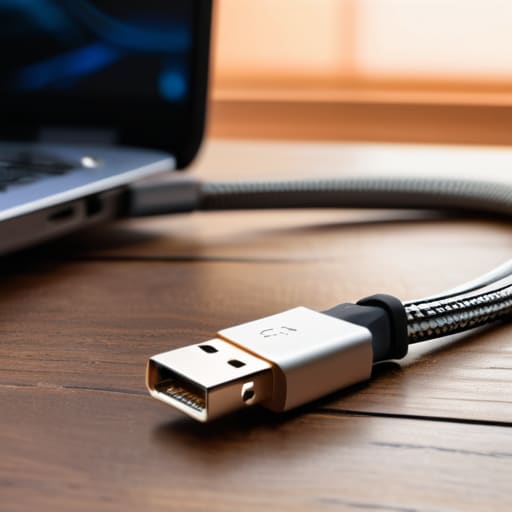
Look, if you’re trying to move a massive 4K video file or a bloated backup folder, please stop trying to email it to yourself. That is a recipe for a headache and a failed upload. When I’m dealing with massive datasets at work or just trying to clear out my phone, I go straight for a USB cable file transfer. It’s old school, sure, but it’s reliable. Cables don’t care about your spotty Wi-Fi or your bandwidth caps. Just plug in, hit the “File Transfer” mode on your device, and let the hardware do the heavy lifting. It is hands-down the fastest way to move large files without staring at a progress bar for forty minutes.
If you absolutely can’t use a cable because you’re already settled on the couch, skip the slow cloud uploads and look into local network transfers. Using tools like Snapdrop or even setting up a quick local FTP server can save you a ton of time. I’ve spent way too many nights waiting for cloud storage synchronization to finish just because I wanted to be “wireless.” If the file is huge, stop being fancy and just use a physical connection. It’s more functional, it’s faster, and it actually gets the job done.
Wireless File Sharing Methods That Actually Save You Energy

Look, if you’re still tethering your phone to a laptop with a tangled mess of wires just to move a few photos, you’re doing too much work. I used to do this constantly back when I was living in that tiny studio, but it’s a massive time sink. For most of my daily tasks, I rely on cloud storage synchronization because it happens in the background while I’m doing literally anything else. Whether it’s Google Drive or iCloud, if the file is small enough, just let the sync do the heavy lifting. It’s not about being “high-tech”; it’s about not thinking about it at all.
However, if you’re dealing with something beefier and don’t want to wait for an upload, you need to look into dedicated cross-platform file sharing tools. I’ve spent way too many hours troubleshooting why a specific OS won’t recognize a drive, so I stopped fighting the hardware. Tools like Snapdrop or even just using a local network share are lifesavers when you’re transferring data between Android and iPhone or jumping between a Mac and a PC. It’s much faster than a standard USB cable file transfer, and honestly, once you set up a reliable wireless workflow, you’ll wonder why you ever bothered with the cables in the first place.
My No-BS Rules for Not Losing Your Mind During File Transfers
- Stop overcomplicating it with fancy third-party apps. If you’re just moving a photo from your phone to your laptop, use the built-in stuff like AirDrop or Quick Share. It’s faster, more secure, and doesn’t require you to create another account you’ll forget the password to in three weeks.
- If you’re dealing with massive folders—I’m talking gigabytes of raw footage or system backups—just use a physical cable. Cloud syncing is great until your Wi-Fi hiccups and you have to start the whole process over. A direct USB-C connection is the only way to guarantee you aren’t sitting there staring at a loading bar for an hour.
- Check your file names before you hit send. It sounds tedious, but if you transfer a bunch of files named “IMG_4829.jpg” to a new device, you’re just creating digital clutter. Rename them to something functional immediately so you actually know what you’re looking at later.
- Don’t trust the “sync” icon blindly. I’ve seen so many people think their files are safe because the little green checkmark appeared, only to find out the upload actually failed halfway through. Always, always spot-check a couple of files on the destination device to make sure they actually open.
- Use a dedicated “Transfer” folder on your external drives or cloud storage. Don’t just dump everything into your main directory. Keeping a landing zone for incoming files keeps your workspace clean and stops you from accidentally deleting something important while you’re trying to organize your life.
The Bottom Line: Stop Overcomplicating It
Stop hunting for the “perfect” app; if you’re moving massive folders, grab a physical cable or an external SSD and call it a day—it’s faster and more reliable than any cloud service.
For quick, one-off transfers of photos or docs, use wireless sharing like AirDrop or Nearby Share; don’t waste five minutes setting up a cloud folder just to move one file.
Prioritize your workflow over the trend. If a method takes longer than the actual task, it’s a bad method. Pick the tool that gets you back to your real life the fastest.
Cut the Friction and Move On
Look, at the end of the day, there isn’t one “perfect” way to move your data; there’s just the way that works for your specific setup right now. If you’ve got a massive 50GB video file, stop fighting with your Wi-Fi and just grab a physical cable or an external drive—it’s faster and less of a headache. If you’re just tossing a few PDFs between your phone and laptop, use a quick cloud sync or AirDrop/Nearby Share and call it a day. The goal isn’t to master every single protocol; it’s to stop letting file transfers become a bottleneck in your workflow. Pick the tool that fits the task, don’t overcomplicate it, and get back to whatever you were actually supposed to be doing.
We spend way too much time stressing over the “best” tech setups when the reality is that most of it is just noise. My advice? Build a toolkit that works for your actual life, not some idealized version of a tech guru’s desk. Whether you’re saving money by repurposing old hardware or just trying to shave ten minutes off your Sunday chores, efficiency is about making things work for you. Don’t get caught up in the hype of the newest, flashiest software if a simple, old-school method gets the job done. Focus on the function, keep your digital space organized, and stop letting small technical hurdles drain your energy.
Frequently Asked Questions
Is it actually safe to use random third-party transfer sites, or am I just inviting malware onto my machine?
Honestly? Most of those “free” browser-based transfer sites are a massive gamble. If you’re uploading sensitive stuff—like tax docs or private photos—don’t touch them. You’re basically handing your data to a random server with zero accountability. If a site looks sketchy or is plastered with intrusive ads, just close the tab. Stick to trusted cloud providers or direct hardware transfers. It’s not worth the headache of cleaning malware just to save two minutes.
My internet is absolute garbage right now—is there a way to move these files without relying on the cloud?
Look, I’ve been there—nothing kills my productivity faster than a spinning loading icon because the Wi-Fi is acting up. If your internet is trash, stop fighting it and go old school. Grab a physical USB drive or an external SSD. It’s not “aesthetic,” but it’s foolproof. Just plug it into one device, drag the files, and move to the next. It’s faster, it’s free, and it doesn’t care about your bandwidth.
Will transferring these massive files over Wi-Fi mess up my connection while I'm trying to work?
Look, I get it. There’s nothing worse than a massive file transfer turning your Zoom call into a pixelated mess. If you’re on a crowded Wi-Fi network, yeah, it’ll definitely hog your bandwidth and cause lag. If you’re in the middle of a heavy workday, skip the wireless route. Just plug in an external SSD or use a hardwired Ethernet connection. It’s faster, more stable, and won’t tank your connection while you’re actually trying to be productive.
Is it worth buying a dedicated high-speed flash drive, or can I just keep using the cheap ones I have lying around?
Look, if you’re just moving a few PDFs or a single assignment, keep using those cheap drives you have in your junk drawer. Don’t waste the money. But if you’re constantly transferring heavy video files or massive backups, those cheap ones are going to drive you insane with their agonizingly slow read/write speeds. Save your sanity and grab one high-speed USB 3.2 drive. It’s an investment in your time, and time is the one thing we don’t have.